Range Locking
Range locking lets you fix a node's strategy so the solver treats it as a given rather than optimizing it. Instead of letting the CFR algorithm find the equilibrium strategy at a particular decision point, you tell the solver exactly what that player does - and the solver adjusts everything else around it.
Why Lock a Range?
There are several practical reasons to lock ranges:
- Test specific lines. Fix one player's strategy (e.g., "BTN always raises here") and see how the other player's optimal response changes. This is useful for exploitative play - if you know a villain always c-bets, you can solve for the optimal counter-strategy.
- Fix poorly converging nodes. Some decision points take many iterations to converge, especially in large trees. If a node is bouncing between strategies, locking it to a reasonable distribution and letting the rest of the tree converge can produce better results faster.
- Simulate real-world constraints. You might want to model a player who never folds in certain spots, or who always bets a certain size. Lock their range and solve for the response.
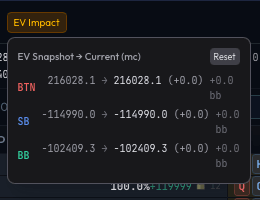
- Study EV impact. By locking a node and comparing EVs before and after, you can measure exactly how much a strategic deviation costs. The EV Impact badge in the lock editor shows this difference in real time.
How to Lock a Range
From the Strategy Grid
- Navigate to the decision node you want to lock in the SOLVE tab. The node must be an action node (not a terminal) and must have solver data (i.e., you've run at least some iterations).
- Click the Lock Range button that appears above the hand frequency table.

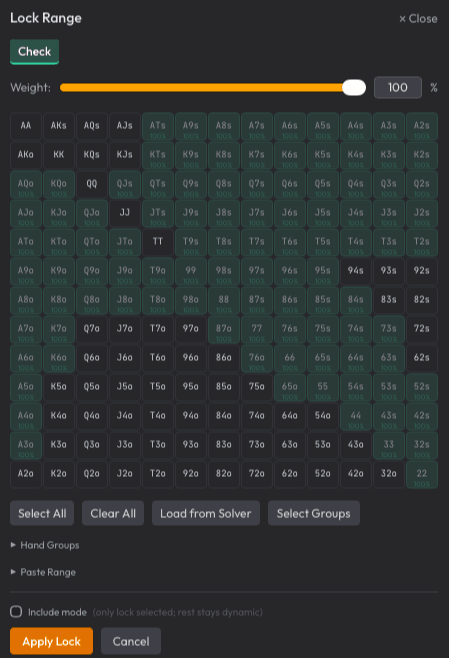
- The Lock Range editor opens as a floating, draggable panel. It shows a 13x13 hand grid (the standard poker hand matrix) with action tabs along the top.
Editing Locked Weights
In the lock editor:
- Action tabs - One tab for each available action (e.g., Fold, Call, Raise 6, All-in). Click a tab to edit weights for that action.
- Weight slider - Set the brush weight from 0% to 100%. When you paint cells in the grid, they're assigned this weight for the selected action.
- Hand grid - Click or drag across cells to set their weight for the current action. Cells are shaded by the action's color at the intensity of the weight. For example, painting AA at 75% for the "Raise" action shows the AA cell in the raise color at 75% opacity.
- Combo-level editing - Click on a specific cell to expand it and set weights for individual suit combos (e.g., set AhKh to raise but AcKd to call). This is useful for postflop scenarios where specific suits matter (flush draws, blockers).
- Range text input - Type a range string (e.g., "AA, KK, AKs") to set weights directly. This uses the same PioSolver/PPT notation:
AAfor pairs,AKsfor suited,AKofor offsuit,99+for ranges, dash ranges like22-88. The text input overwrites the grid for the active action - all 169 hand classes are zeroed first, then the parsed entries are applied. - Include mode - When enabled, only the hands you've explicitly set weights for are locked. All other hands remain solver-optimized. When disabled (the default), every hand at the node is locked to whatever weights you've set (unset hands default to zero for all actions, which the solver then normalizes).
Applying the Lock
Click Apply to commit your locked weights. The solver will now treat this node's strategy as fixed. If the solver is running, the lock takes effect immediately for subsequent iterations.
Unlocking
To remove a lock, click Unlock next to the locked node's "Edit Lock" button. The solver will resume optimizing that node's strategy normally.
Reset EVs
When you lock or unlock a node during a running solve, the accumulated EV values from before the change may no longer be accurate. Click Reset EVs to clear all accumulated EV data and let the solver compute fresh values reflecting the new locked strategy.
EV Impact Badge
When a lock is active, an EV Impact badge appears next to the lock controls. It shows how each player's EV has changed compared to the snapshot taken before locks were applied. This tells you the cost or benefit of the strategic deviation you've introduced.
Accessing Locked Nodes from the Tree
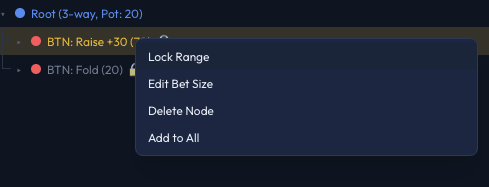
You can also lock ranges from the tree view by right-clicking a node and selecting Lock Range (or Edit Lock if already locked). This opens the same editor panel.