Trainer Controls and Options
The controls bar at the top of the trainer screen contains the basic session controls and an options menu with advanced training settings.

Basic Controls
Position Selector
Choose which seat you play from using the Position dropdown. The available positions depend on your tree's player count:
- 2 players: BTN, BB
- 3 players: BTN, SB, BB
- 4-6 players: UTG, MP, CO, BTN, SB, BB (varies by count)
Changing your position takes effect on the next hand dealt.
Action Buttons
- Deal Hand - Starts the training session and deals the first hand. This button appears when no session is active.
- New Hand - Deals a fresh hand without stopping the session. Available during an active session.
- Stop - Ends the current session, saves it to your session history, and stops the timer.
- Reset - Clears all stats and hand history for the current session. This cannot be undone.
Advanced Options
Click the hamburger menu (three horizontal lines) next to the position selector to open the options panel. A green badge on the icon shows how many options are currently active.
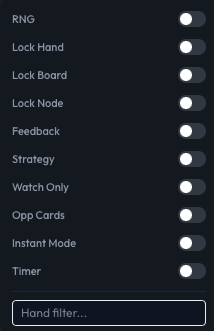
Each option is a toggle that you can switch on or off independently:
RNG
Displays a random number between 1 and 100 alongside each decision. Use this for mixed strategy practice - when the GTO strategy says to raise 60% and call 40%, you raise if the number is 60 or below and call otherwise. This is how professional players implement mixed strategies in real games.
Lock Hand
Keeps the same hole cards across consecutive hands. Useful for drilling a specific holding - for example, locking pocket jacks and practicing the same spot repeatedly until you're confident in the line.
Lock Board
Keeps the same community cards across hands. Combine with Lock Hand to replay the exact same scenario, or use alone to practice different holdings on the same board texture.
Lock Node
Starts each hand from the current decision node in the game tree rather than from the beginning. If you're at a flop check-raise spot, every new hand jumps straight to that decision point. This is the fastest way to drill a specific spot.
Feedback
Controls whether a feedback popup appears after your decisions. When enabled, a dropdown lets you choose the feedback timing:
- Per Action - Feedback appears after every individual decision you make. Good for learning, since you get immediate correction.
- Per Hand - Feedback is collected silently during the hand and shown as a full hand review at the end. Better for simulating real play conditions while still learning from mistakes.
See feedback and review for details on what the feedback popup shows.
Strategy
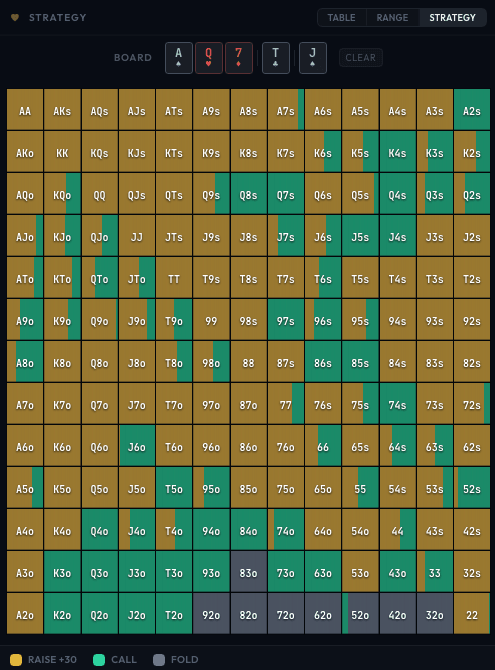
Shows a Strategy button on the poker table during each decision. Clicking it opens the GTO strategy grid overlay so you can peek at the correct frequencies before (or instead of) making your choice. Useful during study sessions when you want to learn ranges rather than test yourself.
Watch Only
Activates study mode where the trainer plays hands automatically using GTO-optimal decisions for all players, including your seat. You watch the action unfold without making any decisions yourself. This is useful for observing how optimal play looks across many hands and studying lines you might not encounter when playing a single position.
Opp Cards
When enabled, the trainer deals actual hole cards to opponents and makes decisions based on their specific combo rather than sampling uniformly from their range. In the hand history, opponent cards are hidden behind "??" by default - hover over them to reveal what they held. This adds realism and lets you study how opponents' specific holdings affect the action.
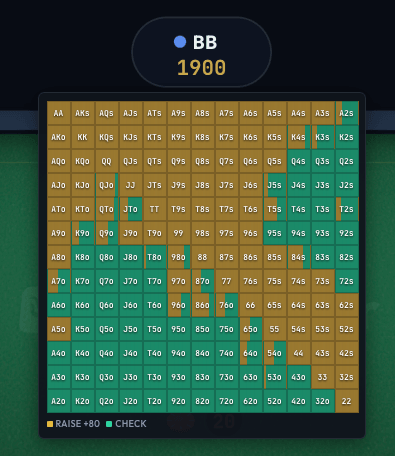
You can also hover over an opponent's cards on the poker table to see their current range as a 13x13 strategy grid. The grid shows the action frequencies for each hand class at the current decision point, color-coded by action.
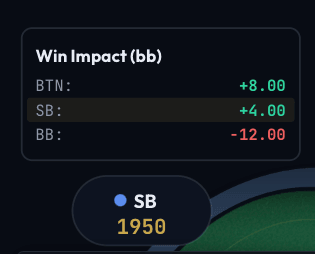
In bounty mode (PKO/Stand-Up), hovering over an opponent also shows their win impact in big blinds - the EV each player gains or loses if that opponent is eliminated.
Instant Mode
Controls the pacing of opponent actions:
- On (default): Action skips instantly to your turn. Optimal for high-volume drilling.
- Off: Opponents take 1.5 - 2 seconds per decision, simulating the pace of a real poker game. Helps with maintaining focus and reading timing.
Timer
Adds a decision timer that auto-folds if you don't act in time. When enabled, a dropdown lets you set the duration:
- 5s - Aggressive; forces snap decisions
- 10s - Moderate; simulates online poker time banks
- 15s - Comfortable for most spots
- 30s - Relaxed; enough for complex multi-street decisions
The timer is great for training yourself to make faster decisions under pressure, which directly translates to better performance in timed online games.
Hand Filter
Below the toggles, a text input lets you restrict which hands you're dealt. Only hands matching the filter will appear. The filter uses standard poker hand notation:
| Syntax | Meaning | Example |
|---|---|---|
AA | Specific pair | Pocket aces |
99+ | Pairs from 99 upward | 99, TT, JJ, QQ, KK, AA |
22-88 | Pair range | 22 through 88 |
AKs | Suited hand | Ace-King suited |
AKo | Offsuit hand | Ace-King offsuit |
AK | Both suited and offsuit | AKs + AKo |
ATs+ | Suited hands from AT upward | ATs, AJs, AQs, AKs |
A2s-ATs | Suited range | A2s through ATs |
Combine multiple entries with commas or spaces: JJ+, AKs, AQo
The input border turns red if the filter syntax is invalid. The hand filter can only be changed when training is stopped - it's locked during an active session.