Connecting to a Remote Solver
Once you have a remote solver server running, connect to it from the IkaSolver GUI to offload computation while browsing results locally.
Connection Settings
Open the Settings drawer (gear icon in the toolbar) and find the Remote Server section.
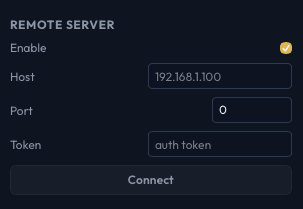
- Enable - Check this box to reveal the connection fields. While a solve is running locally, this checkbox is disabled.
- Host - Enter the IP address or hostname of the server machine. For a local network server, this is typically something like
192.168.1.100. For a cloud server, use its public IP. - Port - The port the server is listening on. Default is
9876unless you specified a different port with--serve. - Token - The authentication token displayed in the server's console output when it started. If you used
--tokenwhen starting the server, enter that value here. - Click Connect.
The host, port, and token are saved locally so you don't need to re-enter them each time.
Connection Status
While connecting, the button shows "Connecting...". Once connected:
- The button changes to Disconnect
- A "Connected" label appears below the button in green
- A green dot appears in the toolbar, visible from any tab, indicating an active remote connection

Unsaved Sim Warning
If you have an unsaved simulation (a completed local solve with results), connecting to a remote server will overwrite it. IkaSolver shows a confirmation dialog:
"You have an unsaved simulation. Connecting to a remote server will overwrite it. Continue?"
Save your sim first if you want to keep it.
Tree Sync on Connect
When you connect, IkaSolver needs to decide which tree to use - your local tree, the server's tree, or neither. A Sync Tree dialog appears based on the situation:
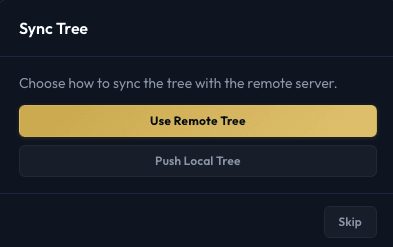
Use Remote Tree
Pulls the tree from the server to your local GUI. Choose this when:
- The server already has a tree loaded (e.g., from a previous session or another client)
- You want to continue working with the server's tree
Push Local Tree
Sends your local tree to the server. Choose this when:
- You've built or modified a tree locally and want to solve it remotely
- The server doesn't have a tree yet
Push is disabled while a solve is running on the server. You'll see a note: "Cannot push while solver is running on remote." Wait for the solve to finish or stop it before pushing a new tree.
Auto-Pull
If you don't have a local tree but the server does, the remote tree is pulled automatically without showing the dialog. This is the common case when reconnecting to a server that's already solving.
Skip
Click Skip (or press Escape) to dismiss the dialog without syncing. Both the local and server trees remain as they are. You can sync later by reconnecting.
After Connecting
Once connected and synced, the solver runs on the remote server but the GUI behaves as if everything is local:
- The SOLVE tab shows live solver stats streamed from the server
- You can start, stop, and pause the solver remotely
- Browse results (hand frequencies, strategy grids, HUD stats) - data is fetched from the server on demand
- RAM estimation is always computed locally based on your tree and settings, but the actual memory usage shown during a solve reflects the server's RSS
If the server already had a solve running when you connected, stats and progress are applied to your GUI immediately and polling starts automatically.
Heartbeat Monitoring
The GUI sends a heartbeat check to the server every 2 seconds. If the server becomes unreachable:
- The connection status clears (green dot disappears)
- Remote mode is automatically disabled
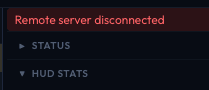
- An error banner appears: "Remote server disconnected"
- Any running solve stats freeze with the phase showing "Disconnected"
The GUI falls back to local mode automatically. No data is lost on the server side - if the server is still running, you can reconnect and the solver state will be intact.
Disconnecting
To disconnect manually:
- Open Settings > Remote Server
- Click Disconnect
Or simply uncheck the Enable checkbox - this triggers a disconnect automatically.
On disconnect, the GUI returns to local mode. The server continues running and retains its solver state, ready for a new client to connect.