Running a Solve
Once you have built a game tree, you are ready to run the solver. IkaSolver uses Monte Carlo Counterfactual Regret Minimization (MCCFR) to iteratively converge on GTO poker strategies. This page covers how to start, control, and monitor a solve.
Starting the Solver
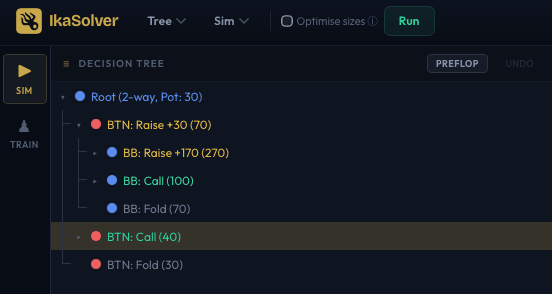
Click the Run button in the toolbar to begin solving. If you already have results from a previous solve, IkaSolver will ask whether you want to overwrite them before proceeding.
For postflop trees, if you have not set starting ranges, the solver will warn you that all players will begin with 100% of hands. You can continue with full ranges or go back and set custom ranges first.
While waiting for the solver to start, the button displays "Starting..." and the status panel shows the current setup phase (loading rank tables, building abstraction buckets, etc.) along with a progress bar.

Tip: The first solve after launching IkaSolver generates lookup tables and textures, which takes a few extra seconds. These are cached on disk, so subsequent solves skip this step and start iterating immediately.
Solver Controls
The toolbar provides four solver controls:
- Run - Starts a new solve from scratch. Available when the solver is not running.
- Pause - Temporarily halts iteration. The solver keeps its state in memory so you can inspect intermediate results without losing progress.
- Resume - Continues a paused solve from where it left off.
- Stop - Ends the solve permanently. The solver writes final results and the status changes to "Complete". You cannot resume after stopping.

The Status Panel
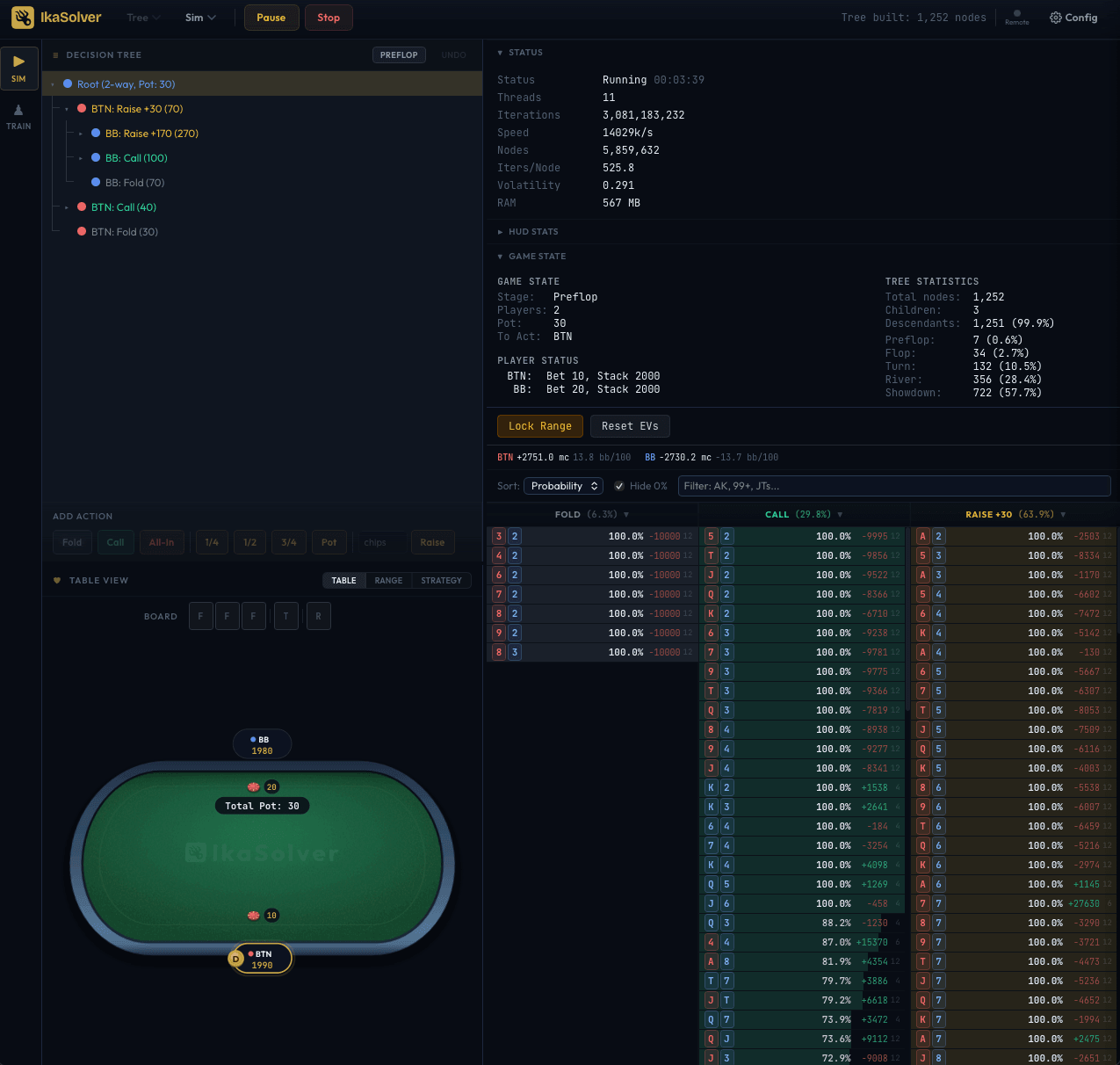
The Status section in the left panel auto-expands when a solve begins and collapses when it completes. It displays the following metrics in real time:
| Metric | Description |
|---|---|
| Status | Current state: Running, Paused, Complete, or Ready. Elapsed time shown alongside. |
| Threads | Number of worker threads actively solving (adjustable in settings even mid-solve). |
| Iterations | Total iteration count. Each iteration evaluates all 16 preflop hand combos per hand class, so 1 raw iteration = 16 hand evaluations in the reported count. |
| Speed | Throughput in thousands of iterations per second (e.g., "450k/s"). |
| Nodes | Total number of nodes in the game tree. |
| Iters/Node | Iterations divided by node count. A rough measure of how thoroughly each decision point has been explored. |
| Volatility | The key convergence metric - see below. |
| RAM | Current memory usage of the solver process. |
Understanding Volatility
If you play poker, you probably think of "volatility" as bankroll swings. In solver terminology, volatility means something different: it measures how much the strategy is still changing between iterations.
A high volatility value means the solver is still finding better plays and shifting its strategy significantly. A low volatility means the strategy has largely stabilized - the solver has converged on a near-optimal solution.
Volatility is displayed as a value multiplied by 1,000 for readability. For example, a displayed value of 0.500 means the raw volatility is 0.0005.
Practical guidelines:
- Below 1.0 - Good enough for quick study and general tendencies
- Below 0.5 - Well-converged for most purposes
- Below 0.1 - Very high accuracy, suitable for publishing or detailed frequency analysis
You can set a target volatility in the solver settings to automatically stop the solve when the desired convergence is reached.
When "Complete" Appears
The status changes to Complete in three situations:
- You click Stop manually.
- The solver reaches the configured iteration limit.
- The solver reaches the target volatility threshold (if set).
Once complete, the status panel auto-collapses and you can browse the results in the strategy grid, hand frequency table, and HUD stats.
The "Optimise Sizes" Checkbox
For preflop trees with multiple raise sizing options, the Optimise Sizes checkbox appears in the toolbar next to the Run button.
When enabled, the solver performs size optimization after the initial solve completes:
- The solver runs normally until the iteration or volatility target is reached.
- It then analyzes each node to find the optimal single raise size - the one raise size (excluding all-in) that loses the least EV.
- Any raise action used less than 2% of the time is removed.
- The tree is simplified to one aggressive action per spot, and the result is the most efficient single-sizing strategy.
During optimization, the status panel shows a log of which sizes are being tested and removed at each node.
When to use it
- Preflop trees with many sizing options (e.g., multiple open-raise sizes, multiple 3-bet sizes). Optimise Sizes finds which single size performs best at each spot.
- When you want a simplified strategy that is easier to implement at the table.
When not to use it
- Postflop trees (the option is hidden for postflop trees).
- When you want to study mixed sizing strategies and see the full range of solver-recommended sizes.
Live Strategy Updates
While the solver is running, the strategy grid and hand frequency table update in real time (every 1-2 seconds). You can navigate the game tree and inspect intermediate strategies as the solver iterates. Early iterations will show noisy, unstable strategies that sharpen as volatility drops.
Re-Running with Different Settings
To re-run a solve with different settings (more iterations, different abstraction, rake, etc.):
- Click Stop if the solver is still running.
- Open the Config drawer and adjust settings.
- Click Run and confirm you want to overwrite the existing results.
Your tree structure is preserved - only the strategy data is replaced.