Presets
Presets let you save and reuse bet sizing configurations in the Tree Configuration dialog. This is helpful when you frequently study similar game types - for example, a "100bb Cash 6-max" preset with your preferred open raise, 3-bet, and postflop sizing.
What is Saved in a Preset
A preset stores all sizing and settings fields from the Tree Configuration dialog:
- Open raise sizes per position
- 3-bet sizes (all position pairs)
- 4-bet, 5-bet, 6-bet sizes (IP and OOP)
- ISO raise sizes (IP and per-position OOP)
- Postflop SPR bet sizing table
- Postflop all-in options
- All-in thresholds (preflop and postflop)
- Max calls, max limpers, pot limit, cold call 3-bet, backraise, donk, and other toggle settings
A preset does not store game-specific fields like player count, stack sizes, blinds, or starting street. Those are set in the New Tree dialog and remain independent of presets.
Saving a Preset
- Open the Tree Configuration dialog (click Build Tree in the toolbar or press
Cmd+B/Ctrl+B). - Configure your bet sizes and settings as desired.
- Click Save Preset in the dialog header (next to "Tree Configuration").
- Enter a name for the preset (e.g., "Standard 100bb Cash").
- Press Enter or click Save.
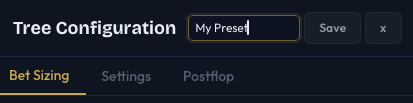
If you save with the same name as an existing preset, it overwrites the old one.
Loading a Preset
- Open the Tree Configuration dialog.
- Click the Load Preset button in the dialog header.
- Hover over the dropdown to see your saved presets.
- Click a preset name to apply it.
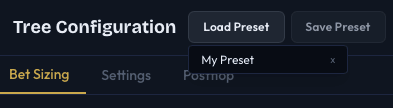
Loading a preset replaces all sizing and settings fields in the dialog with the preset values. Your game parameters (players, stacks, blinds) are unaffected.
Deleting a Preset
- Open the Load Preset dropdown.
- Click the x button next to the preset name.
The preset is removed immediately. This cannot be undone.
Storage
Presets are stored locally in the app's data directory and persist across sessions and app updates. They are not tied to a specific tree or sim file.
Tips
- Create presets for common formats: 100bb cash, 50bb tournament, 20bb short-stack, etc. This saves time when switching between study topics.
- Start from defaults and refine: Build a tree with default sizes, run a solve, then adjust the sizes based on the solver's output. Save the refined configuration as a preset.
- Presets work across player counts: Since presets store per-position arrays, they adapt to different table sizes. A preset saved with 6-max sizing still works for 9-max - positions beyond the original count use the last available value.
Next Steps
- Bet Sizing - Understand all the sizing formats
- Postflop Trees - Configure the Postflop tab
- Creating a Tree - Set up game parameters before applying a preset