Quick Start
This guide walks you through creating a 2-player preflop tree, configuring bet sizes, running the solver, and viewing the results. The whole process takes about five minutes.
1. Create a New Tree
Click New Tree on the welcome screen (or use Cmd+N / Ctrl+N).

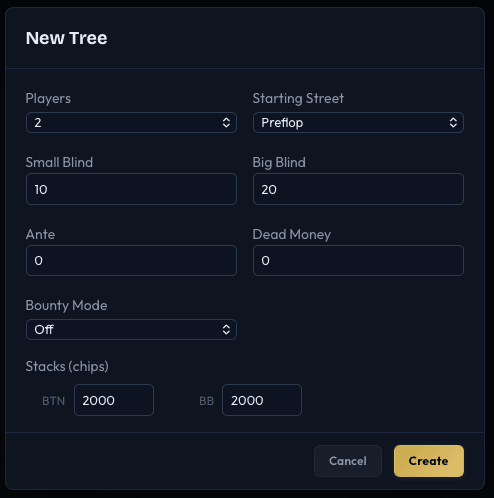
In the New Tree dialog:
- Players - 2
- Starting Street - Preflop
- Small Blind - 10
- Big Blind - 20
- Ante - 0
- Stacks - 2000 for both BTN and BB (100 big blinds)
Click Create.
2. Configure Bet Sizes
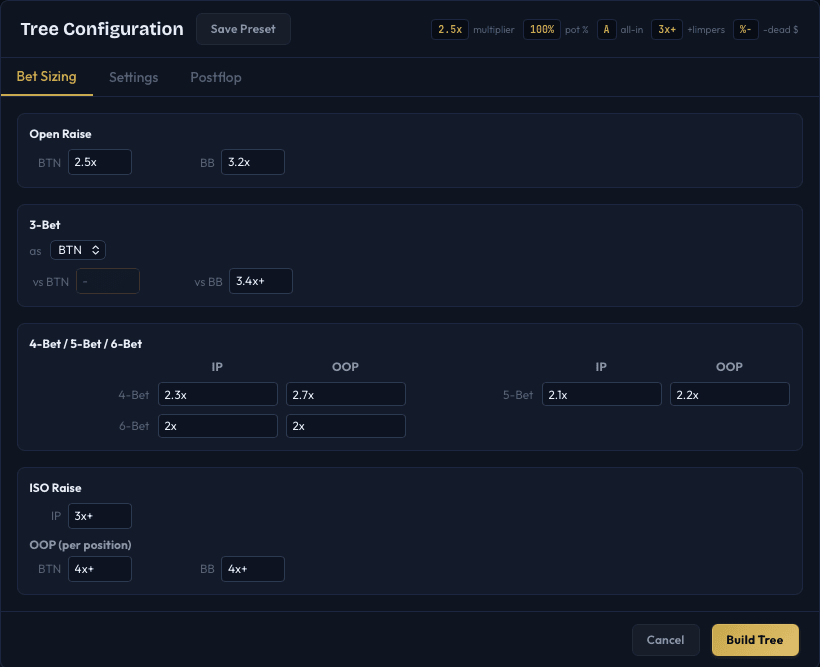
The Tree Configuration dialog opens automatically after creating a tree. It has three tabs: Bet Sizing, Settings, and Postflop.
On the Bet Sizing tab, you will see open raise sizes for each position. The defaults work well for a standard 100bb game:
- BTN open raise -
2.5x(2.5 times the big blind) - 3-bet sizing -
3.4x+(3.4 times the open raise, plus adjustments for limpers)
You can adjust these values or leave the defaults. See the Bet Sizing page for a full explanation of the format.
On the Postflop tab, make sure Add postflop is checked if you want the solver to play through flop, turn, and river. The default SPR-based bet sizing table provides reasonable starting points.
Click Build Tree to generate the game tree.
3. Run the Solver
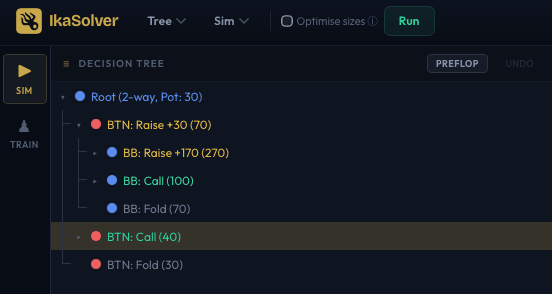
After the tree is built, you will see the decision tree on the left side of the screen. The status bar shows how many nodes were created.
Now click the Run button in the toolbar to start solving.
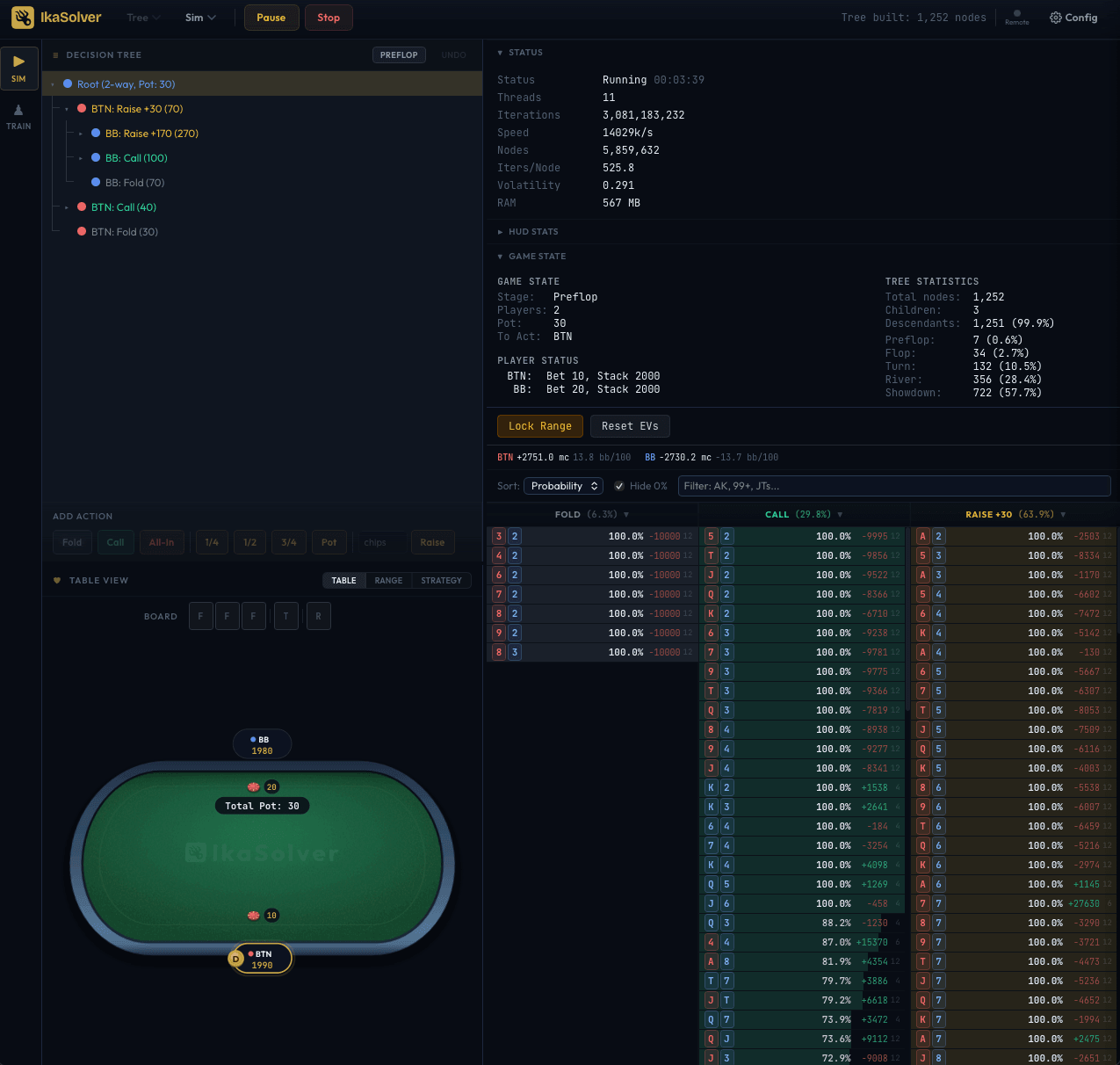
The solver begins iterating. You can watch its progress in the Status section on the right panel:
- Iterations - how many passes the solver has completed
- Speed - iterations per second
- Volatility - a measure of how much the strategy is still changing (lower is more converged)
- Player EV - expected value for each position in millichips
When to stop: For a quick preflop study, 100,000,000+ iterations with volatility below 0.5% gives a solid approximation. You can click Stop at any time, or set an iteration limit or target volatility in the Settings drawer.
4. View the Results
Once the solver stops, the results appear automatically:
Hand Frequency Table
The center-right panel shows the hand frequency table - each hand combo and the solver's recommended action frequencies. For example, you might see that from the BTN, the solver opens AKs 100% of the time but only opens 72s at a mixed frequency.
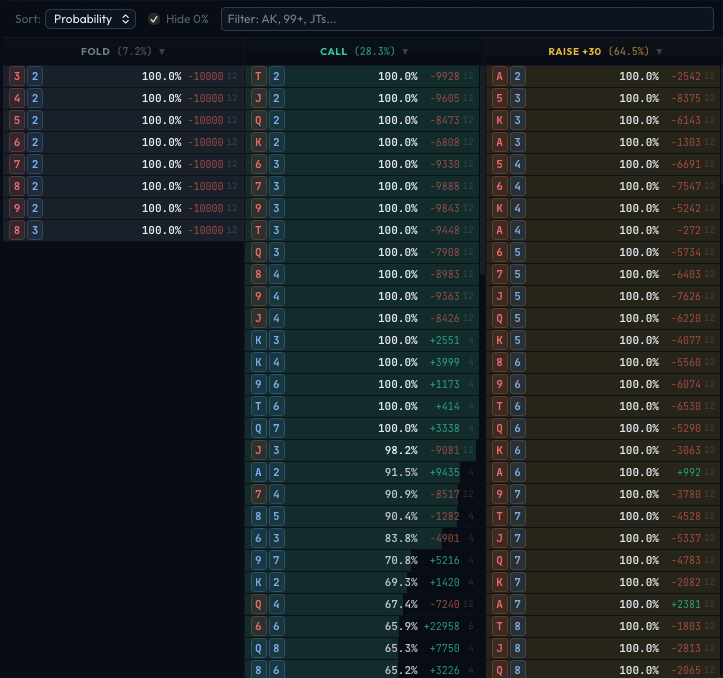
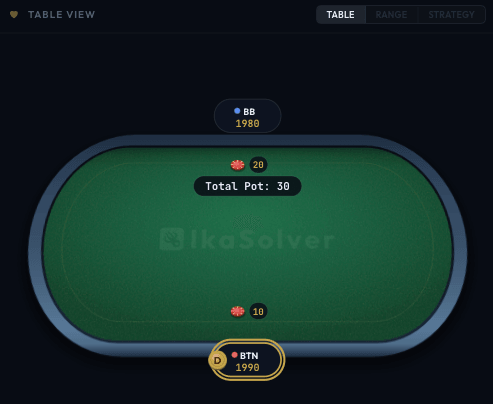
Table View
The bottom-left panel defaults to the Table View, which shows a visual poker table with player positions, stacks, and the current pot. Click on a player to see their range.
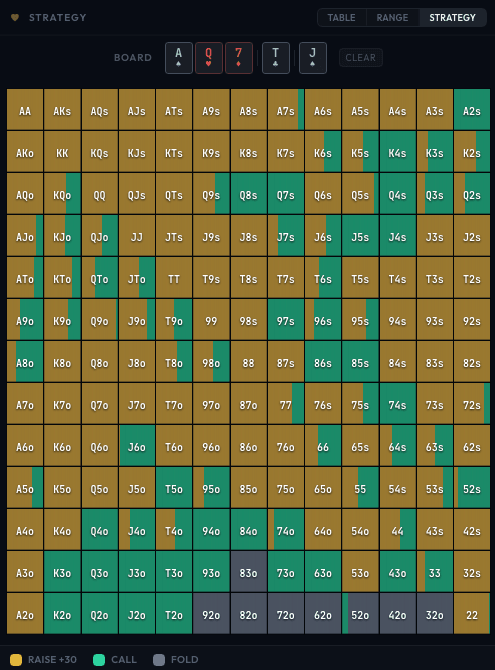
Strategy Grid
Switch to the Strategy tab in the bottom-left panel to see a color-coded 13x13 grid where each cell represents a hand and the colors show the action mix (fold, call, raise, all-in).
Range View
Switch to the Range tab to see a detailed range breakdown for any player. Click on a player in the Table View first to select them.
5. Save Your Work
To save the solved strategy:
- Go to Sim > Save Sim in the toolbar.
- Choose which streets to include (Preflop, Flop, Turn, River).
- Pick a file name and location. Sim files use the
.iksextension.
To save just the tree (without strategy data), go to Tree > Save Tree (Cmd+S / Ctrl+S). Tree files use the .tree extension and can be reopened later to solve again with different settings.
Next Steps
- UI Overview - Learn the full interface layout and keyboard shortcuts
- Bet Sizing - Understand all the sizing formats
- Postflop Trees - Set up postflop-only solves for specific board textures
- Starting Ranges - Constrain player ranges for postflop solves