Editing the Tree
After building a tree, you can fine-tune it by adding, editing, or removing actions at any decision node. This lets you create custom tree structures that go beyond what the automatic builder generates.
The Tree View
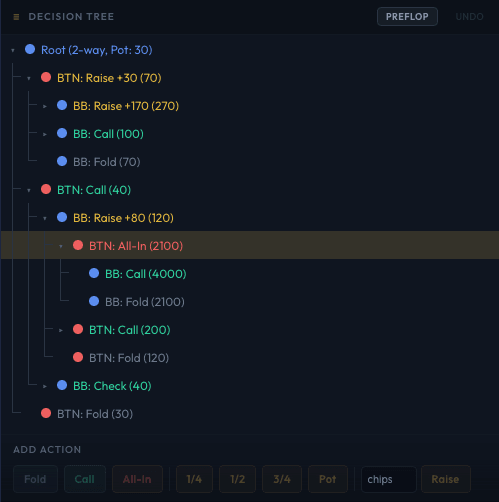
The left panel shows the decision tree as a hierarchical list. Each row represents a node in the game tree and displays:
- The acting player (color-coded by position)
- The action taken (fold, call, raise amount, or all-in)
- The pot size and other contextual information
Navigating the Tree
- Click a node to select it. This updates the hand frequency table, table view, and all other panels.
- Click the arrow (or double-click) to expand or collapse a node's children.
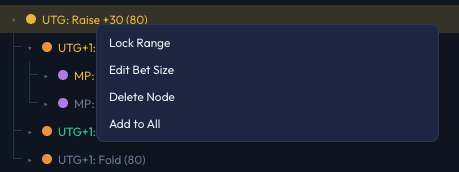
- Right-click a node to open the context menu with editing options.
- A street indicator in the tree header shows whether the selected node is on the preflop, flop, turn, or river.
Adding Actions
The Add Action bar sits below the tree view. When you select a decision node, the available actions light up:

Core Actions
- Fold - The player folds. Only available where folding is legal.
- Call - The player calls. The label shows the call amount (e.g., "Call 40"). Only available when there is a bet to call.
- All-In - The player moves all-in.
Pot Fraction Raises
Four preset buttons create raises as fractions of the current pot:
| Button | Size |
|---|---|
| 1/4 | 25% of the pot |
| 1/2 | 50% of the pot |
| 3/4 | 75% of the pot |
| Pot | 100% of the pot |
These are calculated from the pot size at the selected node.
Custom Raise
Enter a chip amount in the text field and click Raise (or press Enter) to add a raise of exactly that size. The raise must be between the minimum and maximum legal raise amounts.
Click vs Drag
Action buttons support two interaction modes:
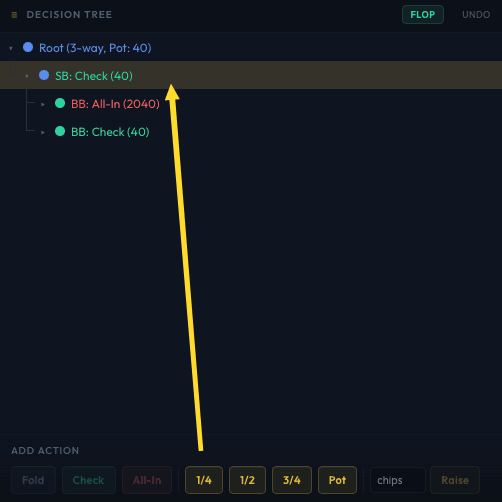
- Click - Adds the action to the currently selected node.
- Drag - Drag an action chip from the bar and drop it on any node in the tree view. This adds the action to the node you drop it on, which is faster than selecting the node first.
Editing Bet Sizes
To change the size of an existing raise:
- Right-click the raise node in the tree.
- Select Edit Bet Size from the context menu.
- Enter the new chip amount.
This is useful for fine-tuning a raise after the tree is built - for example, changing a 75% pot bet to 65%.
Only raise nodes can be edited (fold, call, and all-in have fixed sizes).
Deleting Nodes
To remove a node (and all of its children):
- Right-click the node in the tree.
- Select Delete Node from the context menu.
You cannot delete the root node. Deleting a node is useful for simplifying the tree - for instance, removing a rarely-used bet size to speed up the solve.
Add to All
The Add to All feature lets you add bet sizes to every decision node in the tree at once, filtered by street and SPR range. Access it from the right-click context menu on any node.
How It Works
- Select streets - Choose which streets to apply the new sizes to (Preflop, Flop, Turn, River).
- Define bet lines - Each "line" is a chain of sizes. The first value is the initial bet, the second is the raise of that bet, the third is the re-raise, and so on. Sizes are entered as pot percentages (e.g.,
33, 100, Ameans: 33% pot bet, then 100% pot raise, then all-in). - Set SPR range (optional) - Restrict the addition to nodes within a specific SPR range. Leave Max SPR empty for no upper limit.
- Click Apply.
This is particularly powerful for postflop trees where you want consistent bet/raise sizing across all decision points within an SPR range.
Size Format
In the Add to All dialog, sizes are entered as:
- A number (e.g.,
75) - interpreted as a pot percentage A- all-in- Comma-separated (e.g.,
33, 75) - adds multiple sizes in a chain (bet, raise, re-raise)
Undo
Every tree edit (adding, deleting, or editing nodes) can be reversed with Undo (Ctrl+Z / Cmd+Z). The Undo button is in the tree header and grays out when there is nothing to undo.
Undo is a single-level undo: each press reverses one edit.
Editing While Solved
Tree editing is disabled while the solver is running. If the solver has already completed:
- You can still add and remove nodes, but this invalidates the existing strategy data for affected parts of the tree.
- The solver must be re-run to get accurate results after tree modifications.
Tips
- Start with the automatic builder, then edit. Building a tree with the Tree Configuration dialog gets you 90% of the way. Use manual editing to add niche sizes or remove unnecessary branches.
- Delete rarely-used nodes to reduce tree size and speed up solves. If you ran the solver and a particular bet size is used less than 2% of the time, it is probably safe to remove.
- Use Add to All for postflop consistency. Rather than manually adding a 33% bet at every postflop node, use Add to All to apply it everywhere at once.
- Drag actions for speed. When adding the same action to multiple nodes, dragging is much faster than clicking each node and then clicking the action.
Next Steps
- Starting Ranges - Set hand weights for postflop solves
- Bet Sizing - Configure sizes in the automatic tree builder
- Presets - Save and reuse tree configurations