Solver Settings
The Config drawer contains all solver settings. Open it by clicking the gear icon labeled "Config" in the top-right corner of the toolbar. Settings are organized into sections: General, Remote Server, Rake, Abstraction, Memory, Display, and License.
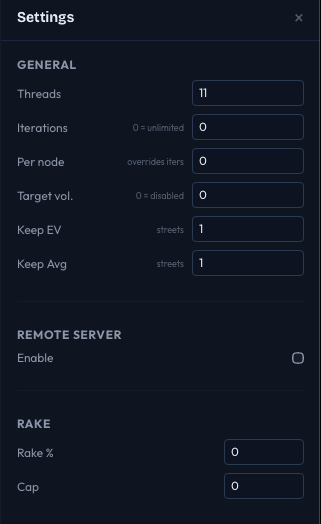
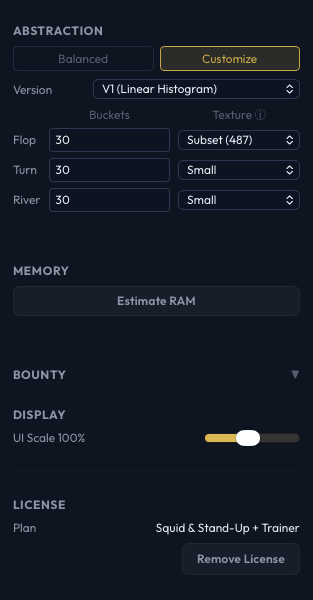
Most settings cannot be changed while the solver is running (they appear grayed out). The exceptions are Threads, which can be adjusted mid-solve, and Display settings, which take effect immediately.
General
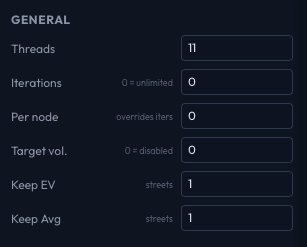
Threads
The number of worker threads used for solving. Defaults to your CPU's core count. More threads means faster iteration speed, but also more memory.
You can change this while the solver is running - the thread count adjusts immediately without restarting the solve.
Iterations
The maximum number of iterations to run. Set to 0 for unlimited - the solver will run until you stop it manually or it reaches the target volatility.
A good starting point is 100,000 for quick exploration. For high-accuracy results, 1,000,000 or more may be needed depending on tree size.
Per Node Iterations
An alternative way to set the iteration count. When set to a value greater than 0, the total iteration count is calculated as:
total iterations = per-node value x info set count
This scales the solve duration proportionally to the tree's complexity. A tree with more decision points (info sets) automatically gets more iterations. This is useful when running batch solves across trees of different sizes, since each tree gets an appropriate number of iterations.
When set, this overrides the Iterations field.
Target Volatility
Set a volatility threshold to auto-stop the solve. When the solver's volatility drops below this value, it stops automatically.
Set to 0 to disable (the solver will only stop when it hits the iteration limit or you stop it manually).
Practical values:
- 0.5 - Well-converged for most study purposes
- 0.1 - High accuracy
- 0.01 - Very high accuracy (may take a long time on large trees)
Remember that volatility in the UI is displayed multiplied by 1,000, so a target of 0.5 means the solve stops at a displayed volatility of 0.500.
Keep EV Streets
Controls how many streets of per-hand EV data are stored during the solve. Valid range: 1 to 4.
- 1 (default) - Only the starting street's EVs are kept. Uses the least memory.
- 4 - EVs for all four streets are stored.
Higher values let you see per-hand EV at every street when browsing results, but increase memory usage. For most analysis, keeping just the starting street (1) is sufficient since the overall player EVs are always available.
Keep Avg Streets
Controls how many streets of average strategy data are accumulated. Valid range: 1 to 4. Default: 4 (all streets).
The average strategy is the time-weighted blend of strategies across all iterations - it is what the solver reports as the final GTO strategy. Reducing this saves memory but means later streets will only have the current iteration's strategy rather than the converged average.
Remote Server
IkaSolver supports offloading the solve to a remote machine. This is useful when you want to run heavy solves on a powerful server while browsing results on your local machine.
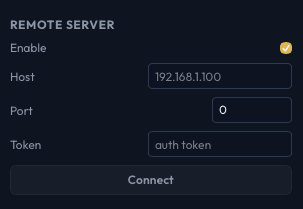
- Enable - Toggle remote solving on or off.
- Host - The IP address or hostname of the remote server (e.g.,
192.168.1.100). - Port - The port the remote server is listening on (default:
9876). - Token - The authentication token. Must match the token used when starting the CLI server.
Click Connect to establish the connection. A green "Connected" indicator confirms the link. When connected, solves are executed on the remote server while you interact with results locally. See Remote Solving for full setup instructions.
Rake
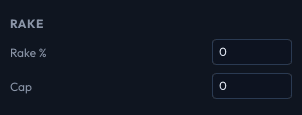
Rake settings let you model the house rake taken from cash game pots. These settings affect the solver's equilibrium - with rake, tighter strategies become more profitable.
Rake %
The percentage of the pot taken as rake. Enter as a whole number (e.g., 5 for 5% rake). Default: 0 (no rake).
Typical online cash game values:
- Microstakes: 5%
- Low stakes: 4-5%
- Mid stakes: 3-4%
- High stakes: 2-3%
Cap
The maximum rake amount in chips. For example, if the rake is 5% and the cap is 60, a 2000-chip pot would have 60 chips of rake (not 100). Default: 0 (no cap).
Set both Rake % and Cap to 0 for tournament play, where no rake is taken from pots.
Abstraction
Hand abstraction is how the solver groups similar hands together to reduce memory usage and speed up convergence. See the dedicated Abstraction page for full details on all abstraction settings.
Memory
Estimate RAM
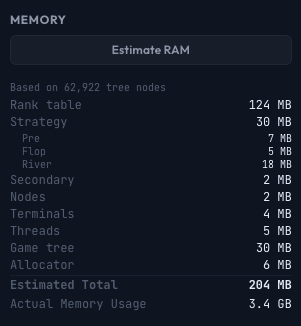
Click Estimate RAM to calculate how much memory the current tree and settings will require before you start solving. The estimate is based on the tree's node count, your abstraction settings, keep EV/avg streets, and thread count.
The estimate recalculates automatically when you change relevant settings (with a short delay to avoid recalculating on every keystroke).
Memory Breakdown
After clicking Estimate RAM, a detailed breakdown appears:
| Row | What It Means |
|---|---|
| Rank table | The hand evaluation lookup table (~124 MB, fixed). |
| Strategy | The main strategy storage - one value per hand per action at every node. This is usually the largest component. A per-street breakdown (Pre, Flop, Turn, River) shows where the memory goes. |
| Secondary | Additional strategy data for streets where EVs are tracked (controlled by Keep EV Streets). |
| Nodes | The packed game tree structure in memory (16 bytes per node). |
| Terminals | Data stored at terminal (showdown/fold) nodes. |
| Threads | Per-thread working memory (action caches, bucket indices). Scales with thread count. |
| Bucket tables | Abstraction lookup tables mapping board textures to hand buckets. Only present when using non-trivial abstraction. |
| Game tree | The original game tree structure (if applicable). |
| Bounty | Memory for bounty/PKO calculations (only shown when bounty mode is active). |
| Allocator | Estimated allocator overhead and fragmentation. |
| Estimated Total | Sum of all components. |
| Actual Memory Usage | The real RSS (Resident Set Size) of the process, shown during or after a solve. Useful for comparing against the estimate. |
Display
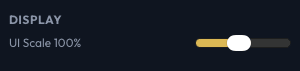
UI Scale
A slider to adjust the overall interface scale from 60% to 150%. Useful for high-DPI displays or if you prefer larger text and controls.
License
Shows your current license plan and provides a Remove License button to deactivate IkaSolver on this machine. This is useful when moving your license to a different computer.
Deactivation can only be done once every 30 days, so make sure you want to move before confirming.

Update Notifications
When a new version of IkaSolver is available, a banner appears at the top of the application. You can dismiss it, and it will not reappear until another update is released.